
In my first career as a designer—back in the early days of the internet—I created a lot of logos. My inspiration came from manila folders filled with sketches, clip art, magazine clippings, and historical crests. To capture a brand’s story, I would pull visual elements from this archive and remix them into something new.
Logos follow a familiar visual language—a vernacular of shapes, colors, and composition—but the art lies in how you combine those elements to express something unique. AI image generators can be a great starting point for concepts, but the trick is getting the prompt right. In this article, I’ll show you how to structure an effective prompt and then refine rough AI outputs into professional artwork.
Step 1: Generating Ideas with AI
For Celebrity Dad Joke Roast, I used AI much like I once used my old sketch folders—except now the tool could assemble rough compositions instantly. Because I know the language of logo design, I could describe what I wanted clearly, which led to usable results after a few iterations.
Tip: The quality of your prompt determines the quality of your output. Without structure, AI defaults to abstract posters rather than true logos. Direct it with clear guidance on shape, style, and text placement.
How to Prompt AI for Logo Design
Follow these steps to shape your prompt:
- Choose a Logo Shape/Style
- Emblem (round/medallion): Text and imagery integrated into one shape (Starbucks, Harley-Davidson, NFL).
- Shield/Crest: Heraldic style, often with laurels or banners (sports teams, universities).
- Oval/Ellipse: Horizontally stretched with bold center text (Ford).
- Wordmark: Text only, using stylized typography (Google, Coca-Cola).
- Lettermark: Initials or monogram (IBM, NASA).
- Combination Mark (Symbol + Text): Icon paired with brand name (Nike swoosh + Nike).
- Abstract Mark: Geometric or conceptual shapes (Pepsi, Adidas).
- State the Brand Name and Tagline
Be explicit about wording and placement. - Define the Style and Tone
Examples: retro, playful, minimalist, corporate.
Tone: fun, serious, elegant, quirky. - Pick a Color Palette
Specify colors or mood (e.g., “neon pink and blue for 80s arcade vibe”). - Describe Symbols or Imagery
List motifs to include (e.g., flames, microphone) and whether you want literal or abstract. - Choose a Typography Style
Font type (serif, bold sans-serif, script) and casing (all caps, lowercase, mixed). - Clarify Format & Usage
Where will the logo appear: app, website, merch, video, print.
Prompt Template
Copy, paste, and fill in:
Design a logo in the style of a [logo shape/style] featuring the brand name [brand name] and tagline [tagline]. The style should be [style/mood] and convey a [tone] feel. Use [color palette]. Include [symbols/imagery], with a preference for [abstract/literal] illustration. Use a [font style] in [letter casing]. The logo will be used for [format/use case].
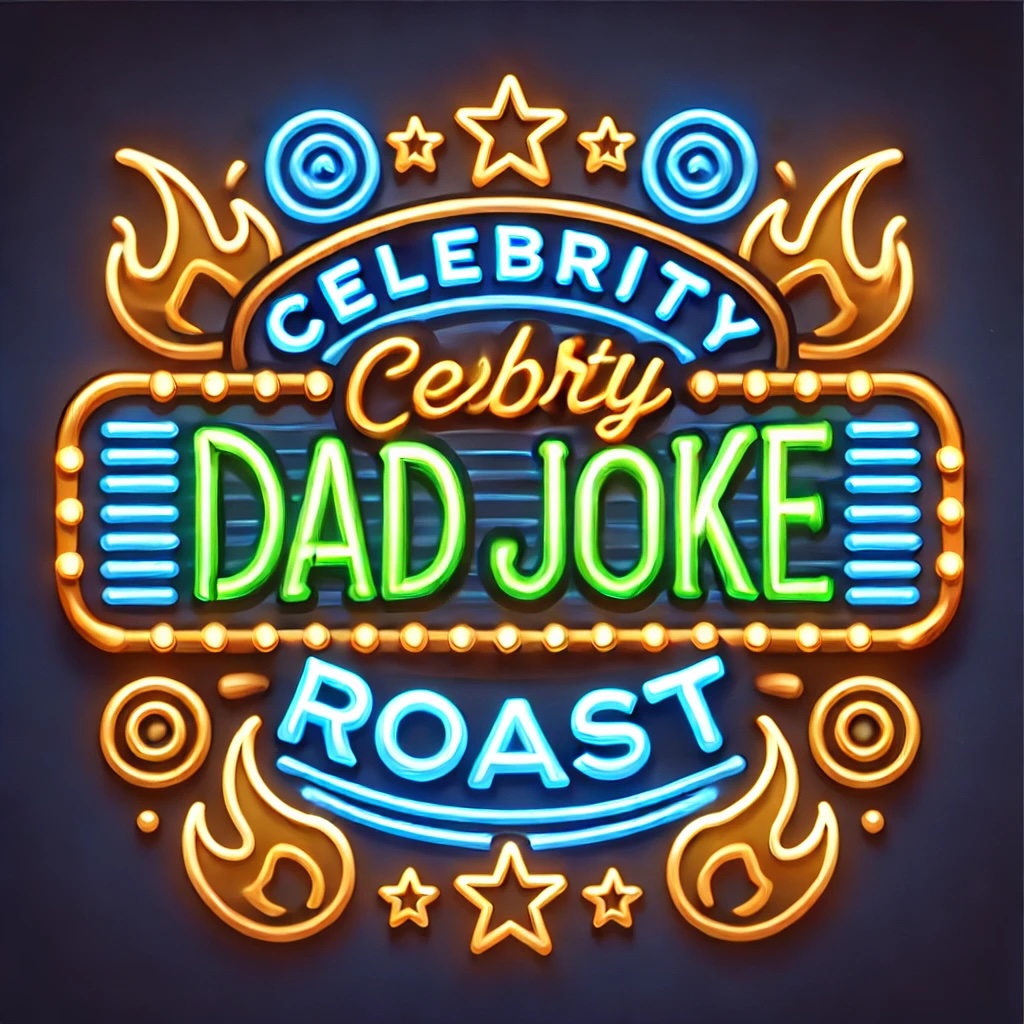
I followed the steps in part 1 and created a prompt to generate multiple AI concepts for the show’s logo. After several versions, I got one that felt close: a retro-style neon sign. It had potential but needed serious cleanup—dull colors, awkward layout, and the classic AI issue: garbled text.
Step 2: Reimagine in Photoshop
Once I had a workable AI draft, I brought it into Photoshop to:
- Split into layers
- Adjust colors
- Enhance glow effects
- Replace garbled text with stylized flames
- Clean up scribbled edges
This became the neon sign prop for the stage, though I still needed a vector file for larger uses.

Step 3: Redraw in Illustrator
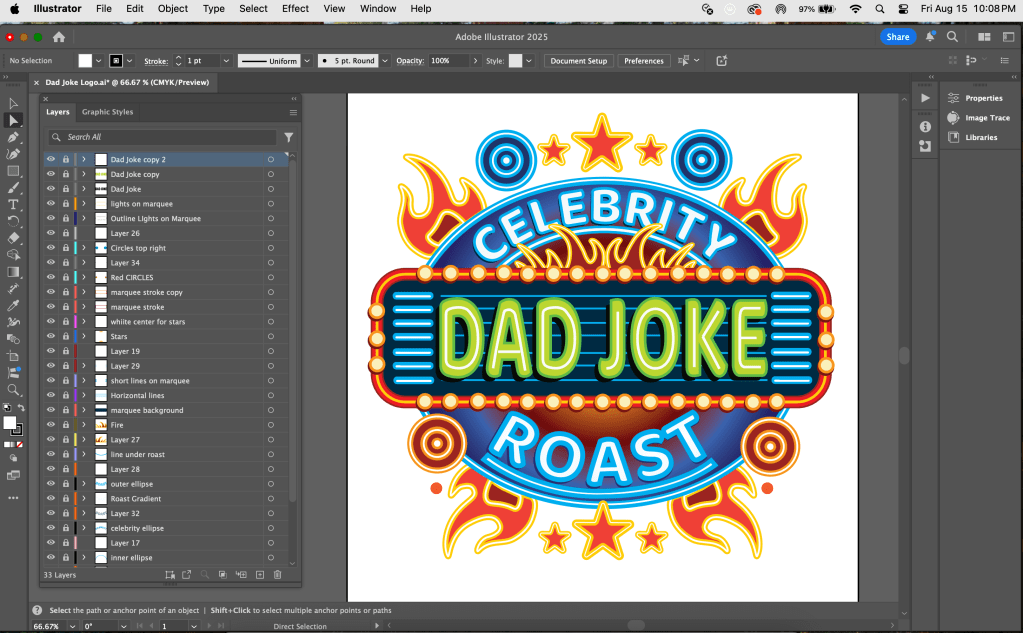
In Illustrator, I rebuilt the design as a clean, scalable vector:
- Preserved the structure
- Added embellishments (flames, marquee lights)
- Created a medallion-style frame
- Split into layers
- Adjust colors
- Clean edge instead of glow effect
Now the logo works across formats—from thumbnails to merchandise.
Reflections & Lessons Learned
What Worked:
✅ Quick Iteration – AI sped up exploration.
✅ Composition Aid – Helped with layout and lighting ideas.
✅ Creative Catalyst – Sparked directions I wouldn’t have tried alone.
What Didn’t:
❌ No Plug-and-Play – Even the best output required editing or rebuilding in Photoshop and Illustrator.
❌ Limited Aesthetic Judgment – AI couldn’t make storytelling choices.
❌ Ethical Considerations – I documented what was AI-assisted; final artwork is human-authored.
Final Thoughts
For artists and creators on a budget, AI can be an incredible tool—as long as you stay in charge. Treat it like a chaotic intern: messy, surprising, sometimes brilliant, but always in need of supervision. The magic happens when you combine AI’s speed with your own vision and judgment.
Coming up next: Part 4: Building Sets with AI: Designing the World of Celebrity Dad Joke Roast
 Story Machine Studio LLC